
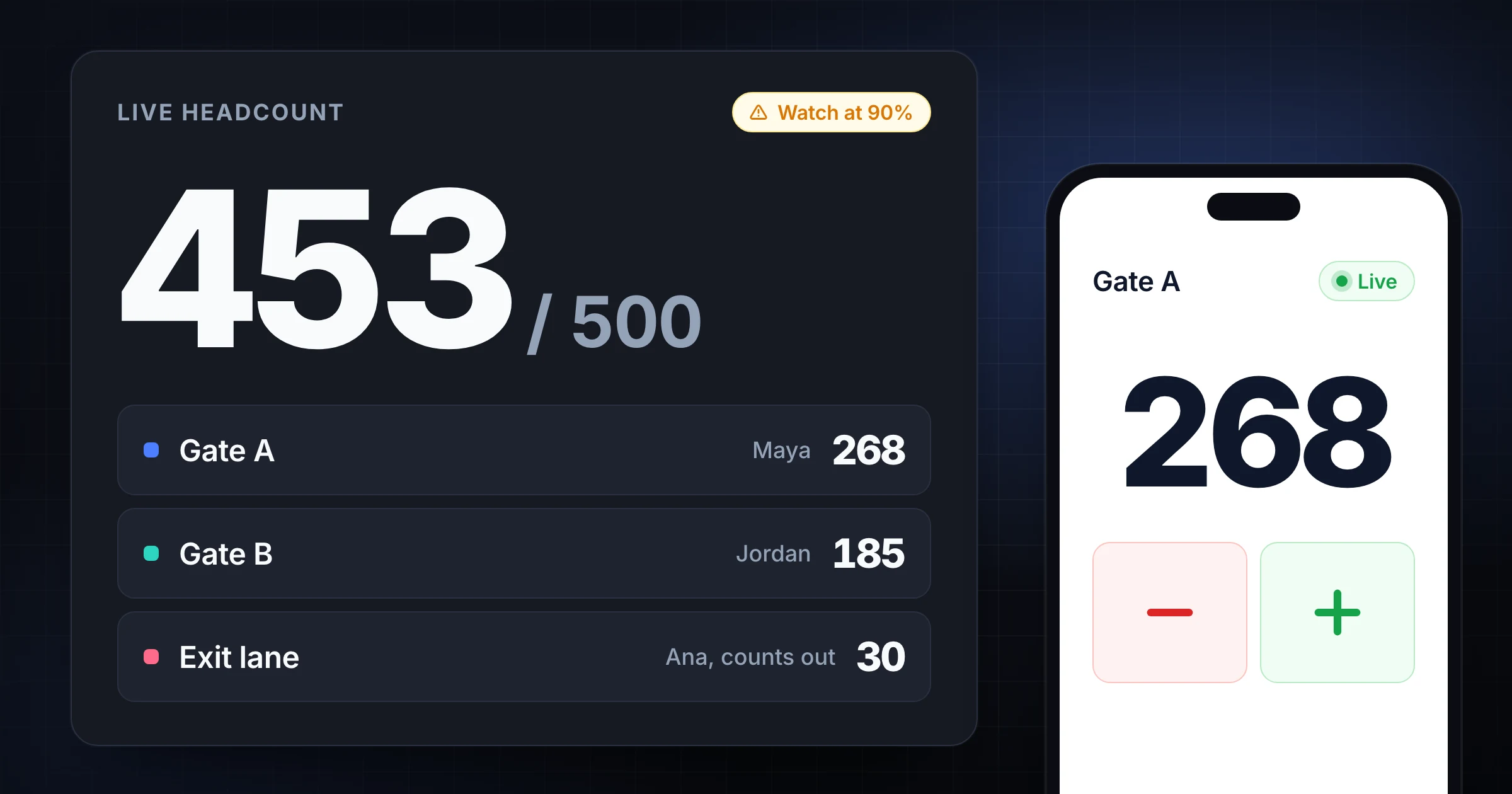
A multi-gate event does not fail because staff cannot tap a clicker. It fails because Gate A, Gate B, re-entry, and the person watching the room are holding different numbers.
This playbook is the ops layer on top of gate counting. It tells you what done looks like, who stands at each door, which reusable template to open, when to slow or stop, how to close out five numbers, and how to hand the capacity figure to planning. For the counting method itself (definitions, rush training, ticket-scan gaps, and same-day investigation), use the event headcount gate-counting guide. This page is not a rewrite of that guide.
The fastest way to put the playbook on a live board is the free Event Command Center template. It places Gate A Entry, Gate A Exit, Gate B Entry, Gate B Exit, and Capacity Remaining on one screen. Staff join from a link or QR with no account. If you only need one door tonight, start with the event headcount counter or the attendance counter, then come back when a second door opens.
SnapCount is a manual shared counter. It does not certify occupancy, fire-code compliance, or crowd safety. Confirm capacity, staffing, and emergency procedures with the venue and the authority having jurisdiction.
What done looks like
Done is not "we clicked a lot." Done is a named crew, one live total, and a closeout the lead can explain.
| Signal | Before doors | During the show | After close |
|---|---|---|---|
| Count rule | Written on the role card | Same at every gate | Quoted in the report |
| Roles | Named people, not "whoever is free" | Backup takes over on rushes | Confirmed before anyone leaves |
| Shared template | Event Command Center open | Every tap updates the same board | Frozen before reset |
| Capacity watch | Watch, slow, and stop numbers posted | Lead calls the change | Notes record each call |
| Second device | At least one gate has joined | Radio and the board match | Join proof is part of closeout |
| Closeout | Five-number sheet ready | Exceptions written in the moment | Export or summary saved |
A 500-person room (the Event Command Center default until an admin changes it) maps to the board like this:
| Board tile | Owner | What a tap means |
|---|---|---|
| Gate A Entry | Gate A counter | One person crossed the Gate A inbound line |
| Gate A Exit | Gate A exit (or shared exit) | One person left through Gate A |
| Gate B Entry | Gate B counter | One person crossed the Gate B inbound line |
| Gate B Exit | Gate B exit (or shared exit) | One person left through Gate B |
| Capacity Remaining | Lead watches this tile | Remaining updates from the four gate tiles |
If radio says 412 inside and the board says 412, the playbook is working. If they disagree, do not invent a third number. Find the missing door, the missed group, or the person still using a private clicker.
Pre-doors checklist and role card
Do this before the first guest reaches a rope. Most of it is paper and names.
- Write the occupancy number you are protecting: posted limit, fire department number for this layout, or seated plan.
- Write the count rule in one sentence. Example: "Count every person who crosses the gate line into the controlled area, including children. Track staff and vendors on a separate counter."
- List every opening that can become an entrance: main, side, VIP, volunteer, kitchen, patio, elevator lobby, overflow connector.
- Mark each opening as open, closed, exit-only, staff-only, or counted.
- Fill the role card: counter, backup, problem solver, and count direction for each counted opening.
- Name the count lead. Only that person calls watch, slow, stop, and reopen.
- Decide whether live occupancy needs exits. If people can leave and return, you need outbound taps or a dedicated re-entry gate.
- Set watch, slow, and stop thresholds and post them on the role card.
- Open the shared template, confirm the capacity number, and send the join link or QR to every counter.
- Test every device from the actual gate. Run a 60-second practice count with a small group.
- Agree who collects the five closeout numbers, where the file goes, and that nobody resets first.
Print the role card. A volunteer should read it in under a minute.
| Role | Job | Does not do |
|---|---|---|
| Count lead | Watches the live total, answers rule questions, calls watch / slow / stop / reopen | Count a busy gate |
| Gate counter | Watches one threshold and taps that gate's entry or exit tile | Solve tickets or hold a second clicker |
| Backup counter | Takes the same threshold on a break, long question, or rush | Count the same lane at the same time as the primary |
| Problem solver | Tickets, wristbands, lost guests, vendor questions | Own the count |
| Exit counter | Taps exits when current occupancy matters | Invent a new re-entry rule mid-show |
Fill names before doors, not during the rush:
| Opening | Status | Counter | Backup | Problem solver | Direction | Tiles |
|---|---|---|---|---|---|---|
| Main (Gate A) | Open | Alex | Priya | Jordan | In | Gate A Entry |
| Side (Gate B) | Open | Luis | Sam | Riley | In | Gate B Entry |
| Re-entry / exit | Wristband returns | Casey | Lee | Dana | In and out | Gate A Exit or Gate B Exit |
| Staff door | Staff only | Morgan | Dana | Lead | In | Separate staff counter |
Capacity: 500
Watch: 400
Slow: 450
Stop: 485
Count rule: Cross the gate line, add 1. Staff on a separate counter.
Lead: Maya. Only Maya reopens after a stop.
Board: Event Command Center. Do not use a private clicker for the live total.
Keep one physical owner per tile. Two people tapping Gate A Entry at once is how a live board becomes a second argument. The lead stays off the door. Gate counters stay on the line.
If you need why backups exist, how to train a rush, or why ticket scanning is a different record, that depth lives in the gate-counting guide. This playbook only needs the card filled in before doors.
Open a reusable shared template
This is the step that turns the checklist into a board other people can see. Start Free. Label paid boards honestly.
| Template | Plan | Use it when |
|---|---|---|
| Event Command Center | Guest, Free | Two gates, entry and exit, live remaining, no account tonight |
| Event Attendance | Guest, Free | Named arrivals, no-shows, and re-entries when you do not need the two-gate remaining board |
| Headcount by Group | Guest, Free | Split a headcount into named groups with one total |
| Multi-Door Capacity | Pro, $15/mo or $129/yr, 7-day trial | Recurring multi-door events that need a saved organization setup |
| Venue Capacity | Enterprise, $39/mo or $349/yr | A venue command board for occupancy across entrances |
| Gate Security | Enterprise, $39/mo or $349/yr | Gate logging that needs a tighter security workflow |
Pro is $15 per month or $129 per year per organization and includes 10 seats. Every new organization also gets a 7-day free trial. Enterprise is $39 per month or $349 per year per organization, with unlimited seats and a daily activity report you can download as CSV. A four-person door crew almost always belongs on Guest first, then Pro if the show repeats.
Activate Event Command Center (Free)
- Open the Event Command Center template. You do not need an account.
- Confirm the five tiles: Gate A Entry, Gate A Exit, Gate B Entry, Gate B Exit, and Capacity Remaining.
- Confirm capacity. The template starts at 500. If your protected number is different, the session admin should change it before the first real tap.
- Put the lead on a laptop or tablet that can stay visible. Send the join link or QR to Gate A and Gate B.
- Have a second device join and tap once. Remaining should drop from 500 to 499, or from your number to one less. That first live sync is the demo. Fix a failed join before doors, not during the rush.
- Assign who taps which tile from the role card. A Gate A counter should not "help" on Gate B Entry because the line looks uneven.
Guest Mode is free and starts without signup. A guest session starts with 1 hour and stays open while active, up to 4 hours. Session limits apply and are shown in the product. That covers most single shows. It is not a saved organization record. If you need history, invites, and exports after the night, subscribe for the organization that will own those records.
If you want a simpler one-job counter first, use the event headcount counter or the attendance counter. Come back to Event Command Center when two doors plus remaining capacity need to live on one screen.
Run-of-show capacity watch
Do not wait until remaining hits zero. The next group is already walking.
| Call | Example on a 500 capacity | What staff do |
|---|---|---|
| Watch | 400 inside (100 remaining) | Lead checks every gate. Backups move to the busiest door. Problem solvers clear questions off the line. |
| Slow | 450 inside (50 remaining) | Meter entry. Groups of 6 become "hold, then six." Do not open a new uncounted door. |
| Stop | 485 inside (15 remaining) | Entry pauses. Exits can still lower the live total. Only the lead reopens. |
Watch, slow, and stop are crew policy: radio calls you post on the role card. Event Command Center shows remaining capacity as a live number. It does not label watch, slow, stop, or a 90 percent warning.
A seated show with assigned doors can run closer to the limit. A standing room with re-entry, late walk-ups, and a patio gate needs more margin. If you count from the event headcount counter, that tool can warn when occupancy reaches 90 percent of the venue limit. Use those tool warnings as a prompt for the lead. The stop call still comes from the named person on the role card, not from a fire-code signal.
Watch: 400. Lead checks all gates.
Slow: 450. Meter entry. No new doors.
Stop: 485. Pause entry. Exits still count.
Reopen: Maya only, after remaining rises and the room is stable.
Gate counters do not debate the call. They count, they meter, or they stop. If someone is already on the threshold when stop is called, finish that person, then hold.
During the show, keep radio and the board on the same number. If a side door opens, staff it or close it. If a counter is answering a ticket question, the backup takes the line. If a group is missed, call the size out loud and correct while the memory is fresh. For threshold and lane tactics that stop two people from counting the same opening, use the busy entrance double-counting guide.
Closeout: five-number reconcile
The best time to fix a gap is while the people who saw it are still on site. Gather these five numbers before anyone resets:
- Live final headcount on the board (current occupancy).
- Gross inbound count by gate (Gate A Entry, Gate B Entry, plus any extra counted doors).
- Outbound count by gate (Gate A Exit, Gate B Exit, or a dedicated re-entry gate).
- Ticket scan or registration check-in total.
- Known exceptions: staff, vendors, VIP list entries, walk-ins, and manual check-ins.
Then compare them in a short table. If the report needs to be saved or shared, follow the event count history export checklist before any counter is reset.
An illustrative closeout (not a customer result) for a 500-capacity room:
| Source | Count |
|---|---|
| Gate A Entry | 286 |
| Gate B Entry | 197 |
| Gross inbound | 483 |
| Gate A Exit | 18 |
| Gate B Exit | 12 |
| Gross outbound | 30 |
| Live occupancy on the board | 453 |
| Ticket scans | 421 |
| Known staff and vendors on a separate counter | 29 |
In that example, scans plus known non-ticketed people equal 450. A gap of 3 against the live occupancy of 453 is normal counting noise on a busy night. A gap of 40 is not. Find it before volunteers go home. Which gate was busiest? Did a side door open? Did a group bypass scanning?
Guest sessions are temporary. If the producer needs a file next week, export before the session ends. Paid organization plans keep saved counters and exports.
Planning handoff: capacity calculator
The live board answers "how many are inside right now." The next event still needs a planning number before tickets, seating, and door staff are locked.
After closeout, hand the protected capacity, the layout, and the overflow note to the event capacity calculator. If the room setup changed (seated dinner versus standing reception, extra booths, a blocked aisle), recalculate before you reuse last week's 500. The room capacity calculator guide covers usable area, setup factors, and an operating buffer so the watch / slow / stop numbers on the next role card are not a guess.
Use the handoff to decide three things for the next show:
| Planning question | What to carry forward |
|---|---|
| What number are we protecting? | Posted limit, layout-specific number, or a tighter operating cap |
| How many doors stay open? | Keep, close, or staff the openings that drifted tonight |
| Where does overflow open? | Trigger remaining, not a feeling in the lobby |
Do not present the calculator result as a fire-code certificate. It is a planning estimate. Confirm the official limit with the venue and the authority having jurisdiction, then put that confirmed number on the next Event Command Center board.
30-minute setup runbook
You do not need a new operations binder for every event. You need a 30-minute setup the next crew can run.
| Minute | Action |
|---|---|
| 0 to 5 | Confirm capacity, count rule, and who is lead. Write them on the role card. |
| 5 to 10 | List every opening. Mark open, closed, exit-only, staff-only, or counted. |
| 10 to 15 | Fill counter, backup, and problem solver names. One owner per tile. |
| 15 to 20 | Open Event Command Center. Set capacity. Send the join link or QR. |
| 20 to 25 | Second device joins and taps once. Remaining drops by 1. Assign tiles from the role card. |
| 25 to 30 | Post watch, slow, and stop on the role card (crew radio calls, not Event Command Center labels). Practice a 60-second count. Say who reopens after a stop. |
If you run the same show every week, keep the filled role card and the template link in the event folder. The next team should not rediscover the rules. When the show repeats often enough to need saved counters and exports, move from Guest to Pro Multi-Door Capacity, or to Enterprise Venue Capacity / Gate Security if the venue needs that board.
Evidence and limitations
This playbook describes a manual operating method checked against SnapCount's current Event Command Center tiles, Guest Mode session limits, and published web prices as of 5 September 2026. Example counts are illustrative. They are not customer case studies.
SnapCount publishes this guide because it builds the shared counter and the Event Command Center template. That is a vendor relationship. Verify current plan gates, seat limits, and template availability on the pricing page and the live template before you brief staff.
This is a live count for operations. It is not a capacity certificate, a fire-code tool, or a crowd-safety approval. Confirm requirements with the venue and the relevant authorities. Accuracy depends on the written rule, named owners, every opening being staffed or closed, and a five-number closeout before reset.
Frequently asked questions
How is this playbook different from the event headcount gate-counting guide?
The gate-counting guide teaches the method: what counts as a person, how to handle re-entry, how to train a rush, and how to investigate a gap.
This playbook assumes you already accept that method. It focuses on the role card, the reusable template, run-of-show watch / slow / stop calls, the five-number closeout, and the planning handoff to the capacity calculator.
Which template should I open for a multi-gate event?
Start with Event Command Center. It is Free Guest Mode, needs no account, and puts two gates plus remaining capacity on one board. Other Free boards are Event Attendance and Headcount by Group.
Use Multi-Door Capacity on Pro ($15/mo or $129/yr, with a 7-day free trial) when the same show needs a saved organization setup. Use Venue Capacity or Gate Security on Enterprise ($39/mo or $349/yr) when the venue needs those boards. One door tonight can start on the event headcount counter or the attendance counter.
Is Event Command Center a fire-code or capacity certification?
No. It is a shared live count for operations.
SnapCount does not certify occupancy, venue capacity, fire-code compliance, or crowd safety. Confirm limits, staffing, and emergency procedures with the venue and the authority having jurisdiction.
Put the playbook on a live board
Fill the role card. Post the watch, slow, and stop numbers. Open Event Command Center. Prove the first tap from a second phone. Count at the line, not in the lobby. Collect the five closeout numbers before anyone resets. Hand the capacity figure to the calculator before the next show.
That is a multi-gate headcount you can brief in 30 minutes and run without inventing a new process at the door.
Topics: event headcount, multi-gate, capacity, event template, shared counting
About SnapCount Team
The SnapCount Team builds and tests shared counting workflows for events, inventory, attendance, and field work. We review these articles when product workflows change and link to the tools we use to validate them.
Contact SnapCount support