
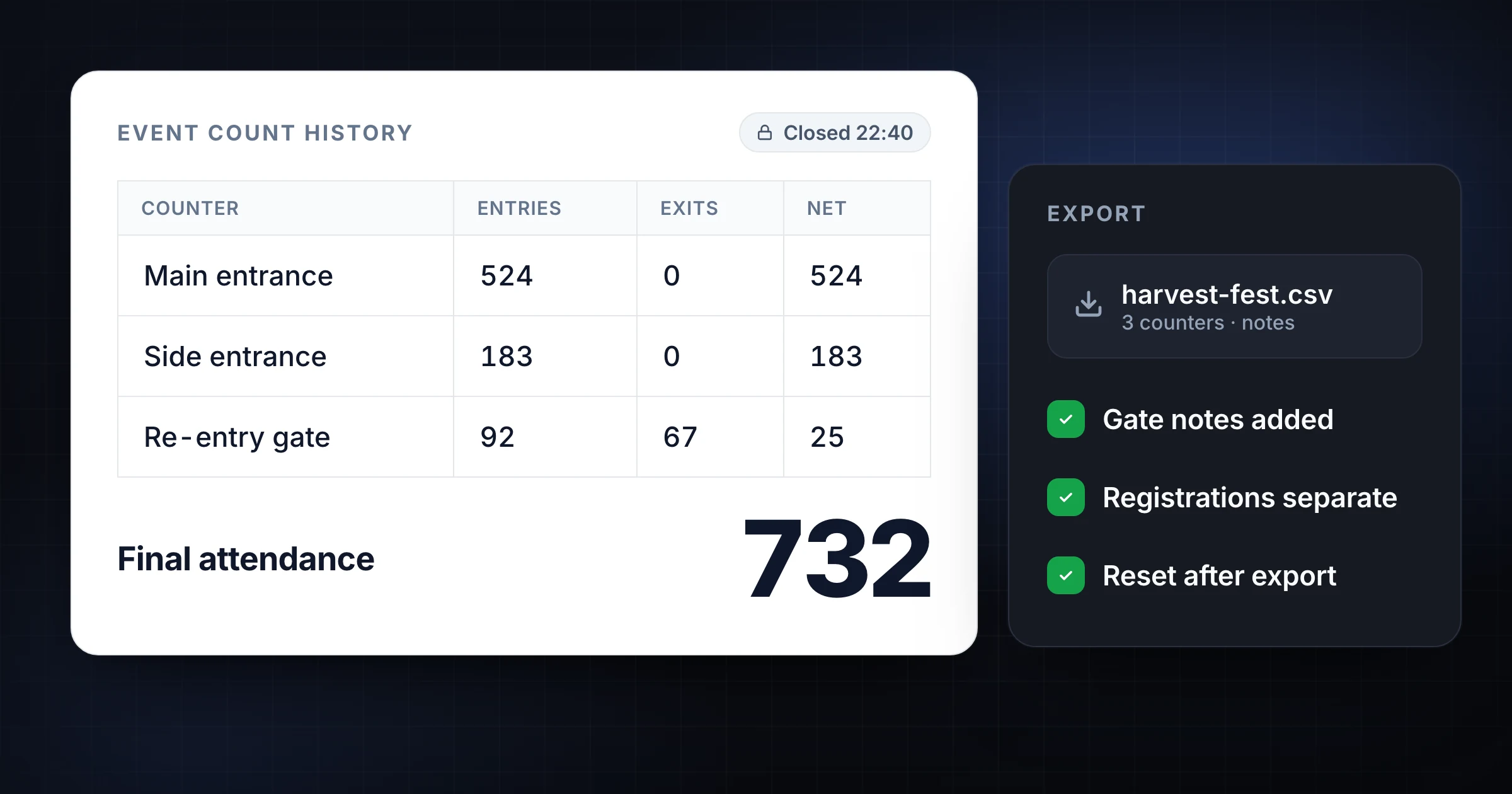
Exporting count history after an event is the difference between "we think 842 people came" and a number your team can explain later.
The live count helps during the event. The exported count history helps after the event. It gives the organizer, venue lead, church administrator, retail manager, or volunteer coordinator a record of what happened, where the count came from, and what should change next time.
Use SnapCount's attendance counter when you need live gate counts and a CSV export after doors close. If the event is still in setup, read the event headcount guide and the attendance counter guide first. This guide covers what to export, when to export it, and how to turn count history into a useful event report.
Decide what the export has to prove
Do not wait until the event is over to decide what the report should include.
Most event teams need the export for one of five reasons:
| Reason | What the export should show |
|---|---|
| Capacity review | Current or peak count, entries, exits, and threshold moments |
| Attendance reporting | Final attendance by entrance, room, service, or session |
| Volunteer handoff | Which counter owned each gate and when the count closed |
| Revenue or registration reconciliation | Ticket scans, manual counts, walk-ins, staff, and exceptions |
| Planning the next event | Arrival waves, busy entrances, staffing gaps, and overflow use |
The export does not need to be complicated. It needs enough context that someone can open it next week and understand what the number means.
For a small event, a final total and two entrance counts may be enough. For a venue, festival, church service, or conference, the export should preserve counters, labels, timestamps, notes, and any manual corrections.
Close the count before exporting
The most common export mistake is downloading a report while the count is still moving.
Use a closeout sequence:
- Announce that entry counting is ending.
- Confirm every active entrance has stopped counting.
- Ask counters about missed groups, corrections, or side-door activity.
- Record final notes while staff are still nearby.
- Save or export the count history.
- Start a new count for the next session instead of reusing the old one.
That sequence matters when several people counted at once. If Gate A stops at 7:05 p.m., Gate B keeps counting until 7:18 p.m., and overflow seating closes at 7:30 p.m., the final report needs those facts.
For events where live occupancy matters, separate "doors closed" from "event ended." The room may keep changing after entry closes if people leave, re-enter, or move between areas.
Export the fields that make the count usable
A useful count export should answer 6 questions.
| Question | Field to keep |
|---|---|
| What was counted? | Event name, session name, counter labels |
| Where was it counted? | Entrance, room, zone, gate, or table |
| Who owned the count? | Counter name or assigned role |
| When did it happen? | Start time, stop time, timestamps, timezone |
| What was the final number? | Entries, exits, net count, final total |
| Why might the number differ from another source? | Notes, exceptions, corrections, scanner gaps |
If you are exporting to a spreadsheet, keep the raw columns. Do not paste only a summary number into the event recap. The raw export lets you answer follow-up questions without reconstructing the event from memory.
For an attendance workflow, the CSV might include:
| Counter | Entries | Exits | Net | Notes |
|---|---|---|---|---|
| Main entrance | 524 | 0 | 524 | Rush from 6:40 to 7:05 |
| Side entrance | 183 | 0 | 183 | Opened 15 minutes late |
| Volunteer check-in | 46 | 0 | 46 | Staff tracked separately |
| Re-entry gate | 92 | 67 | 25 | Wristband returns only |
| Overflow room | 58 | 0 | 58 | Seated count at 7:20 |
The final attendance may be 790. The export explains how that number was built.
Keep registrations and headcount separate
Ticket scans, registrations, RSVPs, and live headcount are related, but they are not the same record.
Treat them as separate sources in the report:
| Source | Best for | Common gap |
|---|---|---|
| Ticket scans | Paid admission and check-in history | Misses staff, vendors, paper lists, walk-ins, and side doors |
| RSVP list | Planning demand | Includes no-shows and people who bring guests |
| Live attendance count | People who crossed the entrance threshold | Needs clear count rules and gate ownership |
| Room or capacity count | Current occupancy | Requires exit or movement tracking |
If the ticket system says 711 and the live count says 748, the export should help explain the difference. Staff, vendors, speakers, children, late walk-ins, manual check-ins, or a side entrance may all be legitimate reasons.
Do not force the numbers to match without understanding what each source includes.
Add notes before memories fade
Count history is stronger when it includes operational notes.
Ask each counter for anything unusual:
- A door opened late.
- A scanner failed for 10 minutes.
- A group entered together during a rush.
- Staff or vendors used an attendee entrance.
- A side gate became an exit after the event started.
- Overflow seating opened partway through the session.
- A manual correction was made after a missed group.
Add those notes before people leave. A week later, "side door weird" is not useful. "Side door opened at 6:45 p.m.; first 32 attendees were redirected from main entrance" is useful.
For recurring events, review the notes before the next event. The goal is not only to store the count. The goal is to improve the next count.
Build a one-page event count report
Most teams do not need a long report. They need one page with the right structure.
Use this format:
| Section | What to include |
|---|---|
| Event details | Name, date, location, session, capacity limit |
| Final numbers | Final attendance, peak occupancy, entries, exits |
| Counter breakdown | Entrances, rooms, volunteer check-in, overflow |
| Reconciliation | Ticket scans, registrations, known exceptions |
| Notes | Rush periods, staffing gaps, unusual movement |
| Next action | Add staff, change entrance plan, open overflow earlier, adjust threshold |
That report can be pasted into a planning doc, shared with leadership, or saved next to the CSV export.
For repeatable setups, connect the report to a template. The templates hub is useful when the same team repeats services, gate counts, volunteer check-in, or room attendance.
Protect the historical record
The export is only useful if the team can find it later.
Use consistent file names:
2026-07-09-summer-fundraiser-attendance.csv
2026-07-09-summer-fundraiser-count-report.pdf
2026-07-09-sunday-930-service-attendance.csv
Save the file where the event team already works. That might be a shared drive, event folder, church admin folder, venue operations folder, or warehouse shift folder.
Then decide who can edit the record. The raw export should usually stay unchanged. If you need a cleaned summary, create a copy or separate report so the original count history remains intact.
Export checklist
Use this checklist after every event:
- Stop the count before exporting.
- Confirm every entrance, room, or gate is included.
- Record final notes and corrections.
- Export the raw CSV or report.
- Compare count history with tickets, registrations, or sign-in sheets.
- Save the export with a clear date and event name.
- Create a short summary with final attendance and next actions.
- Start a fresh counter for the next event or session.
The process should take a few minutes, not an hour. The key is doing it before the reset, before staff leave, and before everyone starts guessing what happened.
Frequently asked questions
What should be included in an event count export?
An event count export should include counter labels, final totals, entries, exits, timestamps, timezone, and notes about exceptions or corrections.
For multi-entrance events, keep a breakdown by gate or room instead of saving only one final number.
When should I export count history?
Export count history after the count is closed and before the team leaves.
That timing lets you confirm every entrance has stopped counting and add notes while staff still remember what happened.
Should ticket scans match the attendance counter?
Not always. Ticket scans and attendance counters measure different things.
Ticket scans usually track registered or paid people. Attendance counters may include staff, walk-ins, vendors, children, side-door entries, and live occupancy changes.
Is a CSV enough for event reporting?
A CSV is enough for the raw record. Most teams should also create a short summary that explains the final number, known exceptions, and next actions for the next event.
Topics: export count history, event count report, attendance export, event headcount
About SnapCount Team
The SnapCount Team builds and tests shared counting workflows for events, inventory, attendance, and field work. We review these articles when product workflows change and link to the tools we use to validate them.
Contact SnapCount support