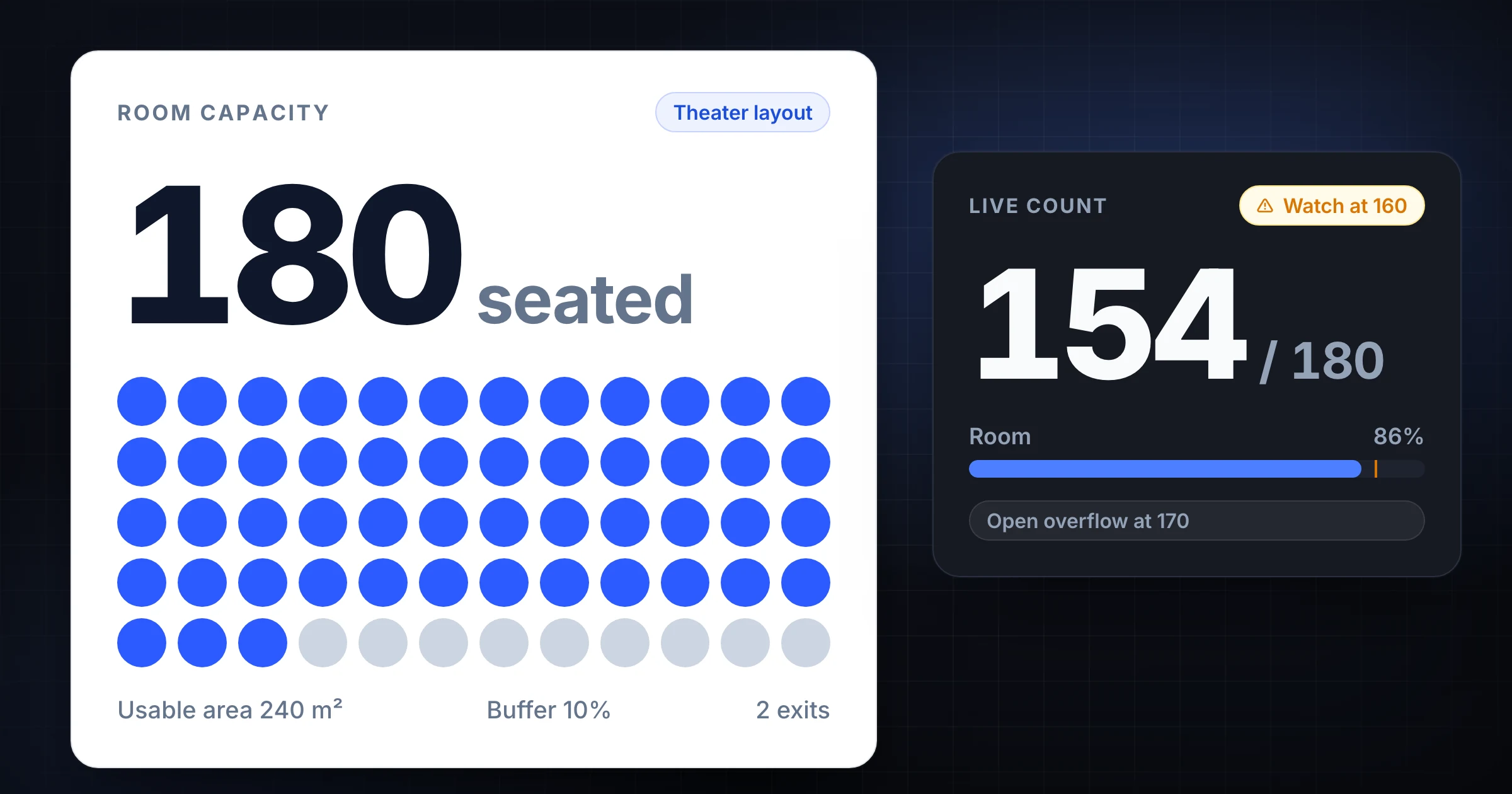
A room capacity calculator helps you estimate how many people can fit in a room before the event starts. The same workflow works for meeting room capacity, conference room capacity, venue capacity, classroom setups, banquet seating, and standing events.
That estimate is not a substitute for the posted occupancy sign, your permit, or the local fire marshal's decision. It is a planning number. It helps you choose a layout, set attendance caps, staff entrances, and decide when to open overflow space.
The mistake is treating room capacity as one fixed number. A room that holds 220 people standing may hold 120 with banquet tables, 160 with theater seating, or 80 once you add a stage, sponsor booths, strollers, and a check-in queue.
Use SnapCount's free event and room capacity calculator to estimate a room before the event. Then use the attendance counter app to track the live count at the door while this guide turns the estimate into a practical entry plan, attendance process, and safer operating buffer.
Start with the official limit
Before you calculate anything, look for the number that already controls the space.
That might be:
- A posted maximum occupancy sign.
- A venue contract or room sheet.
- A permit condition.
- A seating chart approved by the venue.
- A limit from the authority having jurisdiction.
If that number exists, do not override it with a calculator. Use the lower of the official limit and your practical layout estimate.
The National Fire Protection Association explains that occupant load factors are chosen based on how the space is used, not just the room's square footage. A classroom, dining room, standing reception, and exhibit space can produce different results in the same footprint. See NFPA's overview of how to calculate occupant load for the code concept behind the planning math.
For event operations, the rule is simple:
| Capacity source | Use it for | Watch out for |
|---|---|---|
| Posted occupancy sign | Legal or venue maximum | It may not match your event layout |
| Venue room chart | Sales and setup planning | Confirm whether furniture is included |
| Room capacity calculator | Early event planning | Treat as an estimate, not approval |
| Live attendance count | Event-day decisions | Requires entrances and exits to be counted |
| Authority direction | Final safety decision | Local rules control the event |
The calculator helps you prepare. The official limit controls the room.
Measure the usable room, not the whole building
Capacity starts with area, but not every square foot is usable for guests.
Do not enter the entire building size unless guests can actually occupy all of it. For one room, start with the room dimensions. Then subtract space taken by things that reduce usable guest area.
Common deductions include:
| Space item | Why it matters |
|---|---|
| Stage or platform | Guests cannot stand or sit there unless it is designed for them |
| AV table and production zone | Staff need working room and cable paths |
| Buffet, bar, or merch table | Lines form around them |
| Registration desk | Check-in creates a queue before people enter |
| Sponsor booths | Booth depth and attendee browsing space both count |
| Reserved accessibility space | Wheelchairs, companions, and clear routes need room |
| Storage and equipment | Cases, chairs, and supplies should not block exits |
| Required aisles | Movement space cannot be counted as dense seating |
For example, a 60 by 40 foot room is 2,400 square feet. If a stage, AV area, registration table, and equipment zone take 420 square feet, the usable guest area is closer to 1,980 square feet.
That difference changes the plan. At 15 square feet per person, 2,400 square feet suggests 160 people. At 1,980 usable square feet, the same layout suggests 132 people.
This is why a room capacity calculator should be used before tickets, staffing, and catering are finalized.
Choose the layout before you trust the number
The layout determines the practical capacity.
If you change the setup, recalculate. Do not use the standing-room number for a seated dinner, workshop, classroom, church overflow room, or vendor fair.
Use a planning table like this:
| Layout | Practical planning question | Typical capacity pressure |
|---|---|---|
| Standing reception | Can people move without bunching at doors or bars? | Entry flow and crowd density |
| Theater seating | How many chairs fit with clear aisles? | Rows, aisles, exits, accessibility |
| Classroom | How many tables and chairs fit with work space? | Table depth and chair pullback |
| Banquet | How many rounds fit with service paths? | Servers, aisles, buffet queues |
| Workshop | How much table space does each participant need? | Materials, instructors, movement |
| Exhibit or fair | How many booths fit with visitor circulation? | Booth depth and browsing space |
The same room can produce several reasonable estimates:
| Setup | Usable area | Planning factor | Estimated capacity |
|---|---|---|---|
| Standing reception | 1,980 sq ft | 7 sq ft/person | 282 |
| Theater seating | 1,980 sq ft | 10 sq ft/person | 198 |
| Classroom | 1,980 sq ft | 20 sq ft/person | 99 |
| Banquet | 1,980 sq ft | 15 sq ft/person | 132 |
| Vendor fair | 1,980 sq ft | Event-specific | Depends on booth plan |
These are planning examples, not universal code values. The point is to force the layout decision early. A vague "the room holds 200" is not enough when setup changes the usable floor.
Add a buffer for real event behavior
A room capacity estimate should not become your event-day stop number.
People do not distribute themselves evenly. They cluster near food, doors, bathrooms, merch tables, popular booths, and friends. A room can feel overloaded before the mathematical limit is reached.
Set a practical operating buffer:
| Estimate type | Example |
|---|---|
| Official or calculated limit | 200 |
| Planning cap at 90% | 180 |
| Watch threshold at 80% | 160 |
| Open overflow at 85% | 170 |
| Slow entry at 90% | 180 |
The buffer gives your team time to act. If the room is filling fast, the entrance team can slow entry, redirect arrivals, open overflow seating, or ask the event lead for a decision before the count reaches the cap.
This matters most when arrivals come in waves. A school event after parking opens, a church service 5 minutes before start, a conference keynote, or a reception after a main session can add 50 people quickly. Waiting until the number hits the limit is too late.
Plan entrances and exits with the capacity number
Capacity planning does not end with square footage.
Once you know the working cap, decide how people will enter, leave, and return. A room with one controlled door is simple. A venue with a lobby, side entrance, overflow room, and re-entry path needs a count plan.
Use this setup:
| Area | Counter setup | Decision it supports |
|---|---|---|
| Main room entrance | Count inbound arrivals | Current occupancy and room cap |
| Exit or re-entry door | Count out and back in | Net occupancy |
| Overflow room | Count separately | When to open or close overflow |
| Staff or vendor door | Track separately or include by rule | Final reconciliation |
| Lobby queue | Watch manually | When to slow entry or redirect |
If the room cap is 180 and you have 3 doors, each door should not keep its own private clicker total. The event lead needs one live number.
Start with the capacity estimate, then use the attendance counter workflow to count people across entrances. If the event is larger or gate-based, use the event headcount guide to assign gate counters, backups, thresholds, and reconciliation steps.
Use capacity to decide when to open overflow
Overflow rooms work best when they are opened before the main room is uncomfortable.
Do not wait until guests are standing in aisles. Pick a trigger before doors open.
For a room with a 200-person official limit and a 180-person operating cap, the overflow plan might be:
| Live count | Action |
|---|---|
| 140 | Lead checks seat availability and lobby flow |
| 160 | Overflow host is notified |
| 170 | Overflow room opens |
| 180 | Main room entry slows or stops |
| Below 170 | Main room may reopen if seating remains |
This is especially useful for churches, school events, volunteer meetings, workshops, and conference sessions. People often arrive close to start time. A pre-set trigger keeps the team from debating while the line grows.
The overflow room should have its own counter. Otherwise, your final attendance number will mix main-room occupancy, overflow seating, staff, and late arrivals into one unclear total.
Reconcile the estimate after the event
After the event, compare the estimate to what actually happened.
This takes 5 minutes and improves every future plan.
| Planning number | Actual result |
|---|---|
| Official room limit | 200 |
| Operating cap | 180 |
| Peak live count | 174 |
| Main room final attendance | 168 |
| Overflow attendance | 31 |
| Ticket scans or registrations | 193 |
| Staff and volunteers | 14 |
Then write short notes:
- Theater seating worked, but the front rows stayed empty.
- The buffet line blocked one aisle for 8 minutes.
- Overflow should open at 160 next time, not 170.
- The side door needs an exit counter if re-entry is allowed.
- Registration created a lobby bottleneck before the room filled.
These notes are more useful than the raw capacity number. They tell the next planner what the calculator could not know.
Common room capacity planning mistakes
Most capacity mistakes happen before the doors open.
| Mistake | Better approach |
|---|---|
| Using the whole building size | Measure the specific usable room or event area |
| Ignoring the layout | Recalculate for standing, seating, tables, or booths |
| Treating the estimate as permission | Confirm posted limits, permits, and venue rules |
| Forgetting stages and queues | Subtract non-guest and congestion areas |
| Counting only ticket scans | Track live room occupancy when capacity matters |
| Waiting until the room is full | Set watch, overflow, slow-entry, and stop thresholds |
| Skipping post-event notes | Compare estimated capacity to actual flow |
The goal is not a perfect spreadsheet. The goal is a capacity plan your event team can actually use at the door.
Where SnapCount fits
SnapCount helps with the operational side of room capacity.
Use the event capacity calculator to estimate the room before the event. Then use SnapCount counters to track entrances, exits, overflow rooms, and live attendance while people move.
For recurring events, save the room setup as a template. A Sunday service, conference breakout, school fundraiser, workshop, and volunteer check-in should not start from scratch every time.
Event teams can also use SnapCount for events when multiple people need to count at once and one lead needs the live total. Capacity planning is the estimate. Live counting is how you protect the estimate when the doors open.
Frequently asked questions
What is a room capacity calculator?
A room capacity calculator estimates how many people can fit in a room based on area and layout.
It is useful for planning seating, standing room, overflow space, and entry thresholds. It should not replace posted occupancy limits, permits, venue rules, or direction from local authorities.
How do you calculate room capacity for an event?
Start with the official limit if one exists, then estimate usable guest area and divide by a layout-based planning factor.
Subtract stages, AV zones, booths, queues, equipment, and other non-guest areas before you calculate. Then apply a practical buffer so the event team can act before the room is full.
Is room capacity the same as occupancy?
Room capacity is usually the planned or allowed number for the space. Occupancy is the number of people currently inside.
For events, you need both. The capacity estimate sets the cap. A live attendance or headcount process tells you how close the room is to that cap during the event.
Should staff and volunteers count toward room capacity?
Often yes, but the correct rule depends on the venue, event type, and local authority.
Do not assume the limit applies only to guests. Staff, volunteers, vendors, performers, and contractors can still occupy the room and affect movement. Confirm the rule before doors open.
What is a safe buffer below room capacity?
Many event teams use an operating cap below the official or estimated maximum, often around 80% to 90% for planning.
The right buffer depends on arrival speed, layout, exits, re-entry, furniture, accessibility needs, and crowd behavior. Dense standing events and multi-door venues need more margin than seated rooms with assigned entry.
Topics: room capacity calculator, event capacity, venue capacity, occupancy planning
About SnapCount Team
The SnapCount Team builds and tests shared counting workflows for events, inventory, attendance, and field work. We review guides when product workflows change and link to the tools we use to validate them.
Contact SnapCount support