
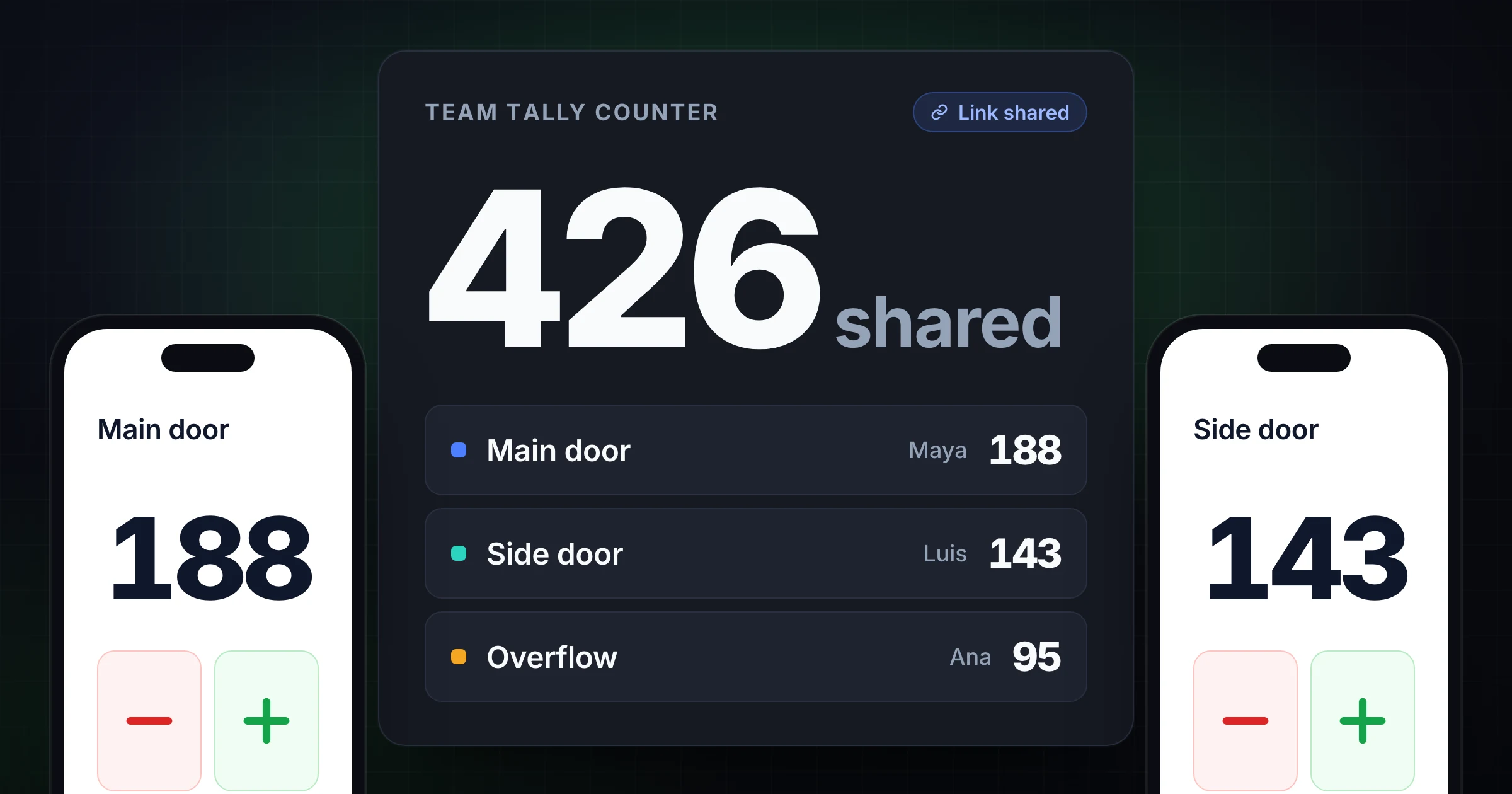
Sharing a tally counter with a team sounds simple: send a link, ask people to tap, and watch the number go up.
The problems show up after the count starts. Two people count the same doorway. Someone resets the counter before the lead records the final number. A teammate joins late and cannot tell whether they should count arrivals, exits, inventory units, or exceptions. The total may still be live, but nobody trusts it.
A team tally counter needs more than a plus button. It needs a clear count rule, named owners, labels that match the work, and a handoff process for the final total.
Use SnapCount's shared counter app when you need to start a team count quickly, or the free online tally counter if one person is counting first and will share the link later. If the job is attendance, use the attendance counter and the attendance counter guide for doors, rooms, and live headcount. This guide shows how to share a tally counter with a team without creating a reconciliation mess afterward.
What a team tally counter app has to do
A team tally counter is one count that several people update from their own phones. Every tap lands in the same total, and every screen shows the new number. That is the whole difference from a hand clicker or a solo counting app, where each person holds a separate number and someone adds them up later.
Four things decide whether a team tally app works on the day:
| Requirement | What it looks like in practice |
|---|---|
| Count sync | A tap on one phone updates the total on every other phone, so nobody has to ask for the current number |
| Join without setup | Teammates open a link or scan a QR code and start counting, with no install and no account |
| Mixed devices | An iPhone, an Android phone, and a laptop all count into the same live tally |
| A record at the end | The final total is saved or exported before anyone resets |
In SnapCount, a free Guest session covers the first three for up to 10 devices. There is an iPhone app, and Android phones, tablets, and laptops join in the browser. Pro adds saved counters, teammates, and CSV export for the fourth.
One honest limit: live sync needs an internet connection. If a phone drops offline it shows an alert and keeps counting, and its taps are held on that phone and sent when the connection returns. Until then, the shared total does not include them.
When to share a tally counter
Share the counter when one person should not own the whole number.
That usually happens when the count is split across locations, shifts, categories, or devices.
| Situation | Why sharing helps |
|---|---|
| Event entrances | Each door can count locally while the lead sees one live total |
| Volunteer check-in | Multiple coordinators can update the same attendance record |
| Inventory counts | Zone counters can work at the same time without waiting for a spreadsheet |
| Classroom activities | A teacher and assistant can track points, votes, or participation together |
| Church attendance | Ushers can count sanctuary, balcony, kids, and overflow separately |
| Retail traffic | Door staff can count entries by shift, entrance, or campaign window |
Do not share a counter just because you can. A solo count is simpler when one person can see the whole action and the number is low risk. Team sharing is useful when the number needs to move across people, devices, or places.
The dividing line is accountability. If the final total affects staffing, capacity, reports, inventory, or planning, set up a shared workflow instead of asking everyone to text numbers later.
Decide what one tap means
The count rule comes before the share link.
If teammates do not agree on what one tap means, the live total will be wrong even if every device syncs perfectly.
Write the rule in one sentence:
- "Add 1 when a guest crosses this entrance into the event."
- "Add 1 for each sellable unit found in this zone."
- "Add 1 when a volunteer is checked in and ready for the shift."
- "Subtract 1 only when someone leaves the controlled area and occupancy matters."
- "Do not count staff, vendors, or people who ask a question and leave."
Then decide how mistakes are corrected. If a teammate misses a group of 4, should they add 4 immediately, tell the lead, or write a note? If someone taps twice, should they use undo, subtract 1, or ask the owner to adjust it?
Small correction rules prevent big arguments later.
Give each teammate a specific job
A shared counter should not mean everyone updates everything.
Assign each teammate a defined slice of the work:
| Role | Responsibility | Example |
|---|---|---|
| Count lead | Owns the rule, total, and final record | Event manager or shift lead |
| Counter | Updates one assigned count | Main door, aisle 4, check-in desk |
| Backup counter | Covers breaks and interruptions | Greeter 2 or zone assistant |
| Reviewer | Checks totals before reset or export | Operations lead or manager |
For a busy event, the setup might look like this:
| Counter label | Teammate | What to count |
|---|---|---|
| Main entrance | Alex | Every attendee entering through the lobby |
| Side entrance | Priya | Every attendee entering through the side door |
| Volunteer desk | Jordan | Checked-in volunteers only |
| Overflow room | Casey | People seated in overflow after it opens |
The labels matter. "Counter 1" and "Counter 2" force the team to remember what each number means. "Main entrance" and "Overflow room" make the workflow visible.
Share the link with instructions, not just the URL
A bare link is easy to send and easy to misunderstand.
Send the link with 4 details:
- What the teammate is responsible for.
- When counting starts and stops.
- What to do after a mistake.
- Who owns the final total.
For example:
Shared count: Saturday volunteer check-in
Your counter: Morning shift table
Count rule: Add 1 only after the volunteer has signed in and received a badge.
Mistakes: Use undo right away. If unsure, message Maya.
Do not reset. Maya records the final count at 9:15 a.m.
That message is short enough to paste into a group chat, but it removes the most common failure points.
For longer workflows, keep a one-page count brief. The brief should include active counters, rules, start time, stop time, thresholds, and the final record location.
Keep one source of truth
The point of a shared tally counter is that the team stops juggling separate totals.
Avoid parallel records during the live count unless they have a clear purpose. If one person is updating SnapCount, another is writing paper tallies, and a third is editing a spreadsheet, the team will eventually argue about which number is real.
Use this split instead:
| Record | When to use it | Owner |
|---|---|---|
| Shared tally counter | During the live count | Count lead |
| Notes | Exceptions, rushes, corrections, context | Counter or backup |
| Export or report | After the count is complete | Reviewer |
| Spreadsheet | Analysis and historical tracking | Operations owner |
The live counter is the operational truth while the count is happening. The report or export becomes the historical record after the count is done.
If your workflow needs a formal report, decide the destination before anyone starts counting. That could be an event recap, attendance sheet, inventory adjustment, shift report, or planning dashboard.
Protect the reset button
Reset is the most dangerous button in a shared count.
The rule should be simple: no one resets until the final total is recorded.
Use a closing checklist:
- Stop the count.
- Confirm every active counter has finished.
- Review unusual notes or corrections.
- Record the final total.
- Export or save history if needed.
- Start a new counter for the next event, shift, game, or zone.
Starting a new counter is cleaner than reusing the same one forever. It preserves context and makes later reporting easier. "Saturday 10 a.m. gate count" is easier to understand than a generic counter that has been reset 12 times.
For recurring work, create a repeatable template. The templates hub is useful when the same team repeats event check-in, attendance, inventory, volunteer tracking, or shift counts.
Handle handoffs during long counts
Team counts often run longer than one person's shift.
Do not rely on memory during handoff. Use a simple handoff note:
| Handoff item | Example |
|---|---|
| Current total | 286 |
| Active rule | Count attendees entering through Main entrance only |
| Last correction | Added 5 after a group entered during a ticket issue |
| Open issue | Side entrance may reopen after 7 p.m. |
| Final owner | Maya records the final total |
The outgoing counter should hand over both the device workflow and the context. The incoming counter needs to know where to stand, what to count, what not to count, and what already happened.
For high-volume counts, overlap shifts by a few minutes. Let the new counter watch the threshold before taking over. That is especially useful for gates, retail entrances, and inventory zones where pace changes quickly.
Use separate counters for separate decisions
One total is useful, but not every number belongs in the same count.
Separate counters when the numbers answer different questions:
| Question | Better setup |
|---|---|
| How many people are inside right now? | In and out counters for occupancy |
| How many people attended today? | Arrival counters by entrance |
| How many volunteers checked in? | Separate volunteer check-in counter |
| How many sellable units are on shelf A? | Zone or SKU counter |
| How many items were damaged? | Separate exception counter or note |
This prevents mixed totals. A church should not silently combine worship attendance, kids ministry, volunteers, and online viewers unless that is the exact metric it wants. An inventory team should not blend sellable units and damaged units into one total unless the downstream system expects that number.
If the count is about event capacity, read the event headcount guide and use the event capacity calculator before doors open. If the count is a general tally workflow, the free solo vs shared team guide explains when a solo counter is enough and when sharing is worth the extra structure.
Team tally counter checklist
Use this checklist before sharing the link:
- Name the count clearly.
- Define what one tap means.
- Assign one count lead.
- Give each teammate a specific counter or area.
- Add labels that match the physical workflow.
- Share instructions with the link.
- Decide how mistakes are corrected.
- Decide when the count starts and stops.
- Record notes for exceptions.
- Save, export, or write down the final total before reset.
The process does not need to be heavy. It needs to be explicit enough that a teammate can join the count and know exactly what to do.
Frequently asked questions
Is there a team tally counter app?
Yes. SnapCount is a team tally counter app. One person starts a count and shares a link or QR code, and teammates tap from their own phones into one live total. There is an iPhone app, and Android phones and laptops join in the browser. A free Guest session works for up to 10 devices without an account.
How does count sync work between phones?
Every tap goes to one shared counter, and every phone following that counter shows the new total. Sync needs an internet connection. A phone that drops offline keeps its taps and sends them when it reconnects.
Can multiple people use the same tally counter?
Yes. Multiple people can use a shared online tally counter when the tool supports live sharing and each teammate knows which part of the count they own.
The safest setup is to assign labels or areas so teammates are not all updating the same number without context.
What is the best way to share a tally counter link?
Share the link with the count rule, teammate responsibility, mistake process, and final owner.
A link alone is easy to misunderstand. A short instruction message keeps the team aligned when the count gets busy.
Should every teammate be allowed to reset the counter?
No. Treat reset as a lead or reviewer action.
The final total should be saved, exported, or written into the right report before anyone resets or starts the next count.
Should I use one shared total or separate counters?
Use one shared total when everyone is counting the same kind of event.
Use separate counters when the numbers answer different questions, such as arrivals, exits, volunteers, inventory exceptions, rooms, or zones.
Can a shared tally counter replace a spreadsheet?
A shared tally counter is usually better during the live count. A spreadsheet is usually better after the count for analysis, reporting, and long-term records.
Count first in the tool built for fast updates, then export or transfer the final number into the spreadsheet if your team needs one.
Topics: team tally counter, shared tally counter, live tally counter, count sync, online tally counter
About SnapCount Team
The SnapCount Team builds and tests shared counting workflows for events, inventory, attendance, and field work. We review these articles when product workflows change and link to the tools we use to validate them.
Contact SnapCount support