
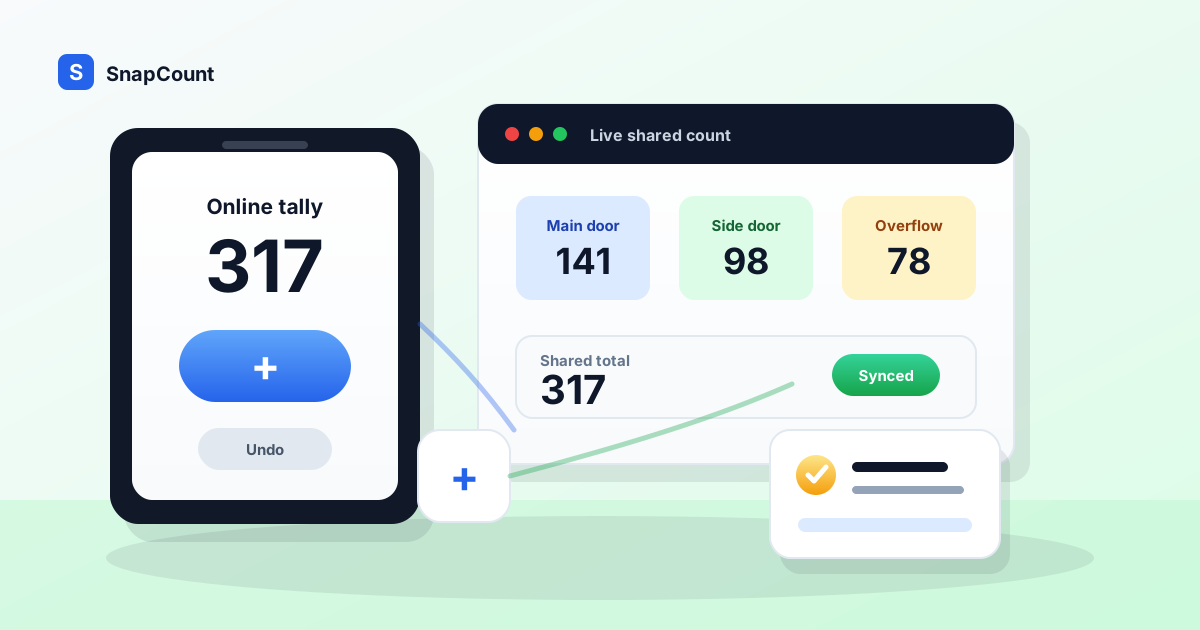
A tally counter online is the fastest way to count something without carrying a mechanical clicker or setting up a spreadsheet. It is also the simplest kind of digital tally counter app: open it in a browser, start counting, and use the same count from the device already in your hand.
Open it in a browser, tap plus when something happens, tap minus when you make a mistake, and keep the number visible while the work is happening. That is enough for personal counts like reps, rows, laps, stitches, or votes. It is also enough for quick work counts like arrivals, boxes, items, or tickets when one person owns the total.
The moment more than one person needs the number, the job changes. A tally counter is no longer just a button. It becomes a shared source of truth.
Use SnapCount's free tally counter online when you need a simple browser counter now. If you are counting people at entrances, try the attendance counter app for a workflow built around headcount, then use the attendance counter guide to set rules across doors and rooms. This guide shows when a basic online counter is enough, when to share the count live, and how to avoid the mistakes that make final totals hard to trust.
What is an online tally counter?
An online tally counter is a browser-based counter that lets you add or subtract from a running total.
Most online tally counters include:
- A large plus button.
- A minus or undo control.
- A reset button.
- A readable current total.
- Local save so the count survives a refresh.
- Optional labels, tally marks, or count direction.
That simple feature set covers a lot of jobs. You can count attendees at a door, inventory items on a shelf, cars through a gate, answers in a classroom, laps in practice, or votes in a quick meeting.
The biggest advantage is access. A browser counter works on phones, tablets, laptops, and desktops. You do not need to buy hardware or ask everyone to install the same app. That matters for teams that use temporary staff, volunteers, or mixed personal devices.
The limitation is also important: many online counters are solo tools. They store the number on one device. That is fine when one person owns the count. It is risky when multiple people are counting toward the same total.
Why use a browser-based tally counter app?
A browser-based tally counter app gives you the convenience of a digital counter without making every counter install the same software. Open a link on a phone, tablet, laptop, or desktop and start with the same familiar controls: add one, undo a mistake, reset when the count is safely recorded, and switch to tally marks when a visual check helps.
That is practical for temporary teams. A volunteer does not need to download an app to count a doorway. A floor manager can check the same count from a laptop. A warehouse lead can start a quick bin check on a shared tablet. For a solo count, the browser can keep the number locally. When another person needs to follow the count, create a live link rather than copying totals through text messages.
If you are comparing app options instead of looking for a quick tool, see the best tally counter app guide for the difference between a free digital counter and a team workflow with saved records and exports.
When an online tally counter is enough
Use a basic online tally counter when the count is fast, low risk, and owned by one person.
| Use case | Why a simple counter works |
|---|---|
| Personal reps or laps | One person controls the number and can correct mistakes immediately |
| Knitting rows or crochet repeats | The count is personal and does not need reporting |
| Classroom votes | One teacher can tally hands or answers in the room |
| One-door attendance | A single volunteer owns the entry count |
| Small inventory check | One person counts one shelf, bin, or box |
| Practice drill scoring | The coach needs a temporary number during the drill |
| Quick traffic sample | A manager counts visits for a short test window |
The common pattern is control. If one person taps every change and the number does not need to survive as an operational record, a free counter is usually the right tool.
For those cases, do not overbuild the workflow. Open the counter, name the count if the tool supports labels, count the thing, write down the final total if needed, and reset only after the result is captured.
When you need to share the count live
A shared count is different from a personal count.
You need live sharing when two or more people are contributing to the same total, when a manager needs to watch the number while it changes, or when the final count will be used for a decision later.
That comes up in practical operations:
| Situation | What breaks with separate counters |
|---|---|
| Event entrances | Door teams reconcile totals after guests have already moved inside |
| Church attendance | Adults, kids, volunteers, and overflow rooms get mixed or double counted |
| Retail foot traffic | Shift managers guess traffic instead of comparing consistent counts |
| Warehouse stocktake | Zone counts live on separate phones, paper sheets, or spreadsheets |
| Volunteer check-in | One person resets or loses the count before the coordinator records it |
| Venue capacity | Staff need one live total before a room gets too full |
Separate counters create reconciliation work. Someone has to ask each counter for a number, add them up, decide whether overlap happened, and trust that nobody reset too early. That might work once. It does not scale well when the count is busy, repeated, or safety related.
A shared online tally counter solves the coordination problem. Each counter can use their own device, but the team works from the same live total.
How to set up a reliable tally count
The tool matters, but the process matters more.
Before the count starts, decide five things:
- What exactly counts as one?
- Who is allowed to update the count?
- Where will mistakes be corrected?
- When is the count finished?
- Where does the final total go?
Those questions sound obvious until the room gets busy. At an event, does a volunteer count staff, vendors, children, re-entry, or only ticketed guests? In a warehouse, does the counter include damaged units, open cases, reserved stock, or only sellable items? In retail, does the foot traffic count include staff, delivery drivers, and repeat entries?
Write the rule in plain language before the first tap:
- "Count every guest entering through this door. Do not count staff."
- "Count sellable units only. Put damaged units in the notes."
- "Count each shopper once when they enter, even if they leave and return."
- "Count every attendee seated in the room at 10:30 a.m."
Then assign ownership. For a solo count, one person owns the device. For a team count, one person owns the workflow and multiple counters may own specific entrances, zones, or categories.
Finally, protect the handoff. The final total should be written to the place where decisions happen: the event report, inventory adjustment, shift log, attendance record, or team dashboard.
Examples of online tally counter workflows
The same counter can support very different jobs if the labels and rules are clear.
| Workflow | Counter setup | Best next step |
|---|---|---|
| Event gate count | One counter per entrance, plus a shared total | Use the event plan to decide staffing and capacity |
| Church attendance | Separate counters for sanctuary, kids, volunteers, and overflow | Save the final total for weekly reporting |
| Retail foot traffic | Count entries by shift or door | Compare traffic to sales and staffing levels |
| Warehouse spot check | Count units by SKU, shelf, or zone | Reconcile against system quantity |
| Classroom participation | Count answers, votes, or points | Reset after recording the activity result |
| Fitness or practice | Count reps, laps, makes, or misses | Keep it personal unless a coach needs a team view |
The key is matching the counter to the decision.
If the decision is personal, a solo online tally counter is enough. If the decision affects staffing, capacity, inventory, reporting, or safety, the count should be saved, shared, and reviewable.
Online tally counter vs mechanical clicker
Mechanical clickers still work well for one person standing in one place.
They are cheap, durable, fast, and do not depend on battery life. If one volunteer needs to count people through a single doorway and report one number at the end, a clicker is a reasonable tool.
An online tally counter is better when the count needs more context:
| Need | Mechanical clicker | Online tally counter |
|---|---|---|
| One person counting quickly | Strong | Strong |
| Undo mistakes clearly | Limited | Strong |
| Count labels | Weak | Strong |
| Share the live total | No | Yes, if supported |
| Use multiple devices | No | Yes, if supported |
| Keep history | Manual | Built in on team workflows |
| Export or report | Manual | Built in on team workflows |
The dividing line is not digital versus physical. It is whether the number has to move.
If the number can stay in one person's hand until the end, a clicker may be enough. If the number needs to be seen by another person, combined with other counts, or reviewed later, use an online counter.
Use the same rule for a hand tally counter. A hand tally counter is fast for one doorway, one scorer, or one quick personal count. A digital tally counter is the better fit when the count needs a label, an undo button, tally mark view, live sharing, or a final record that survives the person holding the device.
Online tally counter vs spreadsheet
Spreadsheets are excellent after the count. They are usually awkward during the count.
A spreadsheet can store columns, formulas, notes, dates, and summaries. That makes it useful for reporting and analysis. But when someone is standing at a gate or shelf and needs to tap hundreds of times, a spreadsheet is slower than a purpose-built counter.
Use this split:
| Job | Better tool |
|---|---|
| Fast repeated tapping | Online tally counter |
| Multi-door live total | Shared tally counter |
| Final report or analysis | Spreadsheet or export |
| Inventory reconciliation | Counter first, spreadsheet or system second |
| Daily traffic summary | Counter during the shift, report afterward |
The clean workflow is count first, analyze second. Capture the number in a tool built for fast counting. Then export, summarize, or reconcile after the count is complete.
For warehouse teams comparing spreadsheet workflows to a dedicated counting tool, the Google Sheets inventory tracker comparison covers the tradeoff in more detail.
What to look for in a shared tally counter
If you need more than a solo counter, look for features that protect the workflow.
A good shared tally counter should include:
- A share link that opens on any device.
- Live updates across phones, tablets, and laptops.
- Clear labels for entrances, zones, items, or categories.
- Increment and decrement controls that are hard to confuse.
- A reset flow that prevents accidental data loss.
- Saved history for final totals.
- Export or reporting for recurring work.
- Team access so the count does not depend on one person's phone.
Speed still matters, but speed is not enough. In a shared count, trust matters more. The team needs to know who is counting what, whether the total is current, and where the final number will live after the session ends.
This is where SnapCount is built to expand. You can start with the free browser counter for a solo count. When the work becomes collaborative, SnapCount supports shared sessions, saved counters, teammates, exports, and reports through team plans.
The best tally counter is the one that fits the risk of the count.
Common mistakes to avoid
Most tally counter mistakes are process mistakes.
Avoid these:
| Mistake | Better approach |
|---|---|
| Counting without a definition | Decide what counts before the first tap |
| Letting multiple people update one solo device | Use a shared session or assign one owner |
| Keeping separate counters for one total | Split by entrance or category and sync the total |
| Resetting before recording the result | Write down or save the final total first |
| Using a spreadsheet as the tapping surface | Count in a counter, report in a spreadsheet |
| Ignoring re-entry rules | Decide whether repeat entries count |
| Treating estimates as exact counts | Label estimates clearly when precision matters |
The goal is not just a higher number. The goal is a number your team can explain later.
Where SnapCount fits
SnapCount works well when a count starts simple but may become shared.
For a personal or temporary job, open the free online tally counter. It works in the browser, supports quick increment and decrement, and lets you count without installing hardware.
For people counting, use the attendance counter when you want the workflow to fit doors, rooms, entrances, or services.
For recurring operational work, route the count into the right team workflow:
- Event teams can use SnapCount for events to coordinate entrances and capacity-sensitive counts.
- Retail teams can use SnapCount for retail to track foot traffic without installing sensors.
- Warehouse teams can use SnapCount for warehouses for stocktakes, cycle counts, and zone-based inventory work.
If you are comparing app options, the best tally counter app guide explains when free tools are enough and when paid team features make sense.
The practical recommendation
Use an online tally counter for any count that needs to be fast, visible, and easy to correct.
Use a solo counter when one person owns the number and the final result is low risk. Use a shared counter when multiple people contribute to the same total, when someone else needs to watch the count live, or when the number affects staffing, inventory, attendance, safety, or reporting.
Keep the setup simple: define what counts, assign owners, label the count clearly, record the final total before reset, and choose a tool that can grow when the count moves from personal to operational.
That is the difference between tapping a button and running a trustworthy count.
Frequently asked questions
What is an online tally counter?
An online tally counter is a browser-based tool for adding or subtracting from a running total. It is used for people counts, inventory checks, votes, reps, rows, laps, tickets, and other repeated counting tasks.
Is an online tally counter free?
Many online tally counters are free for basic solo counting. SnapCount offers a free online tally counter for quick browser-based counts, with team features available when you need shared sessions, history, exports, and reporting.
Can multiple people use the same tally counter?
Yes, if the counter supports live sharing or team sessions. A basic solo counter may only save the number on one device. For entrances, events, retail traffic, or warehouse zones, use a shared counter so everyone works from the same live total.
Is an online tally counter better than a clicker?
An online tally counter is better when you need labels, undo, sharing, history, or reports. A mechanical clicker is still useful for one person counting quickly in one place when the final number does not need to sync anywhere.
What should I count with an online tally counter?
Use an online tally counter for repeated events where each tap means one more item, person, vote, rep, lap, row, or occurrence. For business workflows, define the rule before counting so the final number is easy to trust.
About SnapCount Team
The SnapCount Team builds and tests shared counting workflows for events, inventory, attendance, and field work. We review guides when product workflows change and link to the tools we use to validate them.
Contact SnapCount support