
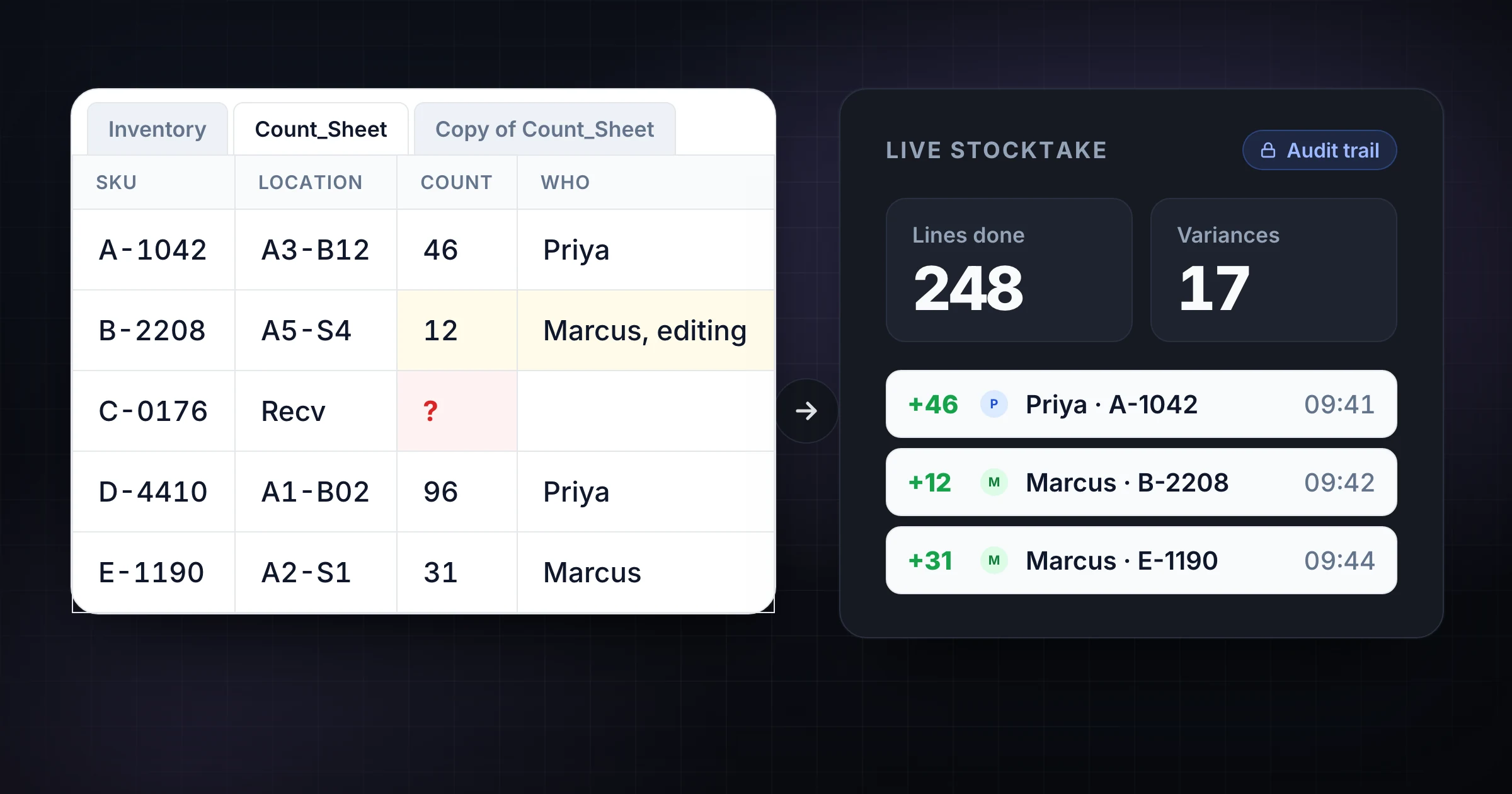
A Google Sheets inventory tracker is a good place to start.
It is free, familiar, and flexible. You can make a SKU list, add columns for expected quantity and physical count, share the file with your team, and export the results when the count is done.
That works until the count becomes a team operation. Two people edit the same row. Someone sorts the sheet while another person is entering quantities. A counter loses signal in the back aisle. A supervisor cannot tell which numbers are final. The sheet still has the data, but the workflow around the data starts breaking.
This guide compares Google Sheets with SnapCount for multi-user inventory counts. You will see where Sheets is still useful, where it becomes risky, and when a warehouse team should move counting work into a purpose-built shared counter. If your team is planning a cycle count or stocktake, start with the warehouse counting workflow and use this comparison to choose the right system.
The real job is not the spreadsheet
Most spreadsheet inventory trackers are designed around the final table:
| SKU | Location | Expected qty | Counted qty | Variance | Notes |
|---|---|---|---|---|---|
| A-1042 | Aisle 3, Bin 12 | 48 | 46 | -2 | Open carton |
| B-2208 | Aisle 5, Shelf 4 | 12 | 12 | 0 | Clear |
| C-0176 | Receiving hold | 30 | 25 | -5 | Recount needed |
That table is useful. It is also only the last mile of the job.
The harder part is the operating workflow:
- Who owns each aisle, shelf, bin, or SKU group?
- Which counts are still open?
- Which rows are first counts, recounts, or approved adjustments?
- Which person entered each number?
- Did anyone change a quantity after the supervisor reviewed it?
- Can the count continue when Wi-Fi is weak?
- Can you roll up totals without copying numbers between files?
Google Sheets can store the answers, but it does not enforce the workflow. A good inventory count needs structure before, during, and after the physical count. That is where a general spreadsheet and a counting tool begin to diverge.
Where Google Sheets works well
Google Sheets is still a strong tool for planning and analysis. You should not throw it away.
Use a spreadsheet when you need to:
- Export a SKU master from your WMS, ERP, POS, or accounting system.
- Sort count lists by location, item class, vendor, or value.
- Add formulas for variance, dollar variance, or accuracy rate.
- Build a weekly inventory accuracy scorecard.
- Share a read-only report with finance or leadership.
- Keep a simple count list for one person in a small stockroom.
Google's own Drive sharing help explains that files can be shared with different roles, including viewer, commenter, and editor. That is useful for distributing a count file and limiting who can make changes. The same ecosystem also gives you version history, comments, filters, and familiar exports.
For a solo operator, that may be enough. A small retailer counting 80 SKUs after close can use a sheet and be done in an hour. A maintenance closet with one owner can track stock in a sheet without much risk.
The question is not whether Sheets is bad. The question is whether Sheets should be the live counting surface when several people are touching inventory at the same time.
Where Sheets starts to break in a team count
Multi-user inventory counting creates problems that formulas do not solve.
The first problem is row ownership. If two counters can edit the same row, you need a rule for who owns the final number. If the rule lives in someone's head, the count will drift.
The second problem is state. A row can look complete because it has a number in the counted quantity column. But that number may be a first count, a recount, a placeholder, a copied expected quantity, or a supervisor-approved result. Unless the sheet has strict columns and every person uses them the same way, the state is ambiguous.
The third problem is movement. Warehouses are physical. People walk aisles, count bins, answer questions, pause for forklifts, and move between signal zones. A browser tab with a large sheet is not always the best interface for quick, repeated count entry on a phone.
Common failure modes look like this:
| Failure mode | What happens | Impact |
|---|---|---|
| Accidental sorting | One person sorts the sheet while others are counting | Rows and notes no longer match the physical route |
| Shared row edits | Two counters update the same SKU | Nobody knows which count is final |
| Formula overwrite | A user types over a variance formula | Accuracy report becomes unreliable |
| Offline gap | A device cannot load or save changes | Counter records numbers elsewhere and retypes later |
| Permission sprawl | The file is shared broadly as editable | Unreviewed changes become hard to police |
| Weak audit trail | Version history exists, but count intent is unclear | Supervisor spends time reconstructing what happened |
None of these are rare edge cases. They are normal warehouse conditions showing up inside a tool that was not built specifically for floor counting.
Compare the two workflows
The cleanest way to choose is to compare the actual count day.
| Step | Google Sheets inventory tracker | SnapCount |
|---|---|---|
| Prepare count list | Build rows, formulas, filters, and permissions | Create counters or templates for zones, aisles, or SKU groups |
| Assign work | Tell people which rows or tabs they own | Assign each person a specific counter or count area |
| Enter counts | Edit cells in a shared sheet | Tap or adjust a focused counter from phone, tablet, or desktop |
| Watch progress | Filter rows and check completion columns | See live totals and activity as the team counts |
| Prevent conflicts | Rely on instructions, protected ranges, or separate tabs | Keep count ownership clearer by design |
| Review changes | Use version history and comments | Use count history, timestamps, and team activity |
| Export results | Already in spreadsheet format | Export count history or summary data to CSV |
| Best fit | Planning, analysis, and single-user counts | Live multi-user counting, stocktakes, events, and audits |
Sheets is strongest before and after the count. SnapCount is strongest during the count.
That distinction matters. You may still use Google Sheets to prepare the SKU list and analyze variance. But the live action, the part where people are physically counting, benefits from a simpler interface and a clearer audit trail.
Live totals matter more than most teams expect
In a single-person count, totals can wait. One person counts, enters the number, and checks the result.
In a team count, live totals change the way the supervisor manages the floor.
Imagine a warehouse stocktake with 4 zones:
| Zone | Counter | Target lines | Completed | Status |
|---|---|---|---|---|
| Aisles 1-3 | Priya | 120 | 118 | Recounting variances |
| Aisles 4-6 | Sam | 100 | 64 | Behind schedule |
| Receiving | Morgan | 45 | 45 | Complete |
| Quarantine | Lee | 30 | 21 | Blocked by open inspection |
With a live system, the supervisor sees the issue while there is still time to act. Sam needs help. Quarantine is blocked. Aisles 1-3 are nearly done but need variance review.
In a spreadsheet, the same information may exist, but it usually requires checking filters, tabs, colors, comments, or side messages. If the team is disciplined, it can work. If the team is moving fast, progress visibility becomes stale.
For cycle counting, live totals also make the daily habit easier. The count owner can see whether today's A-item list is done before the shift ends. If it is not, they can adjust the workload instead of discovering the gap the next morning.
Audit trail is not the same as version history
Google Sheets has version history. That is valuable. It can help you see that a file changed and sometimes who made the change.
Inventory counting needs a narrower audit question: what count action happened, when did it happen, and who did it?
Those are different questions.
Version history is file-centered. It tracks document changes. A count audit trail is action-centered. It tracks counting events.
For example, a supervisor reviewing a variance does not want to inspect every edit made to the entire spreadsheet. They want to know:
- Who counted SKU A-1042?
- What was the first physical count?
- Was there a recount?
- Who approved the final quantity?
- Were there adjustments after approval?
- Did the same item have variance in the last count?
You can build some of this in a spreadsheet with extra columns, protected ranges, comments, and named versions. But you are building process controls manually. That can be reasonable for a mature operations team. It can also be too much process for a team that just needs a clean count record.
Permissions are easier when the tool matches the role
Spreadsheet permissions are broad. A person is often a viewer, commenter, or editor on the file. You can protect sheets and ranges, but every protected area adds setup and maintenance.
Inventory count roles are more specific:
| Role | Needs |
|---|---|
| Counter | Enter counts for assigned area, add notes, avoid seeing distracting fields |
| Supervisor | Watch progress, review variances, request recounts |
| Manager | Export results, compare accuracy, share reports |
| Finance | Review approved adjustments and dollar impact |
If everyone is an editor in the same sheet, the process depends heavily on discipline. If only one person can edit, the process creates a bottleneck. The count owner becomes a data entry clerk instead of a reviewer.
SnapCount fits teams that need several people entering counts without giving everyone a fragile spreadsheet to maintain. Counters can focus on counting. Managers can focus on the count result.
When to keep using a Google Sheets inventory tracker
There are still cases where a spreadsheet is the right tool.
Keep using Google Sheets if:
- One person owns the whole count.
- The SKU list is small enough to review manually.
- Counts happen rarely and the cost of setup matters more than speed.
- You do not need real-time progress visibility.
- You already have strong spreadsheet controls and a trained team.
- The count is mainly a planning or reporting exercise, not a live floor workflow.
A simple stockroom does not need a heavier system. A founder counting event supplies once a month can use a sheet. A shop owner with one backroom and one trusted manager can use a sheet.
The rule is simple: if the sheet is making the work clearer, keep it. If the team is working around the sheet, move the live count somewhere else.
When to switch to SnapCount
Switch when the count involves coordination, speed, or accountability.
SnapCount is a better fit when:
- Multiple people count at the same time.
- You split work by zone, aisle, gate, store, or team member.
- You need live totals while the count is happening.
- You need timestamps and count history without extra spreadsheet setup.
- You want staff to count from phones without navigating a wide sheet.
- You repeat the same stocktake or cycle count workflow every week.
- You need a clean handoff from counters to supervisors.
This is common in warehouses running cycle counting best practices, retail teams tracking store traffic, and event teams managing gate counts. The shared pattern is simple: several people are counting in parallel, and one person needs a trustworthy total.
If your warehouse already uses Google Sheets for reporting, you do not have to choose one forever. Use SnapCount for live counting, then export the result for analysis. That gives you a cleaner floor workflow and keeps the reporting layer familiar.
A practical hybrid setup
For many teams, the best answer is Sheets plus SnapCount.
Use Google Sheets for:
- Importing and cleaning the SKU list.
- ABC classification and count frequency planning.
- Variance formulas and weekly scorecards.
- Finance review and historical reporting.
Use SnapCount for:
- Assigning counters to zones or item groups.
- Capturing live counts from multiple people.
- Tracking activity with timestamps.
- Running repeatable count templates.
- Exporting final count data after the floor work is done.
A 4-step hybrid workflow looks like this:
- Export the SKU list from your source system into Google Sheets.
- Sort and group the list by class, zone, aisle, or count owner.
- Create the live counting structure in SnapCount for the team.
- Export the final count data and review variance in your spreadsheet.
That keeps the spreadsheet where it is strongest: analysis. It moves the count surface to a tool built for counting.
If you want a starting point, browse the templates hub and adapt a warehouse count template to your zones or SKU classes.
A decision checklist
Use this checklist before your next inventory count.
| Question | If yes, lean toward |
|---|---|
| Is only one person counting? | Google Sheets |
| Do several people need to count at once? | SnapCount |
| Do you need formulas, pivots, and historical scorecards? | Google Sheets |
| Do you need live progress and activity history? | SnapCount |
| Are counters using phones on the floor? | SnapCount |
| Is the count a one-time small stockroom check? | Google Sheets |
| Is the count recurring, audited, or team-based? | SnapCount |
| Do you need exports for finance afterward? | Either, with SnapCount export into Sheets |
Do not make the decision based on software preference. Make it based on operational risk.
If a wrong count creates order delays, customer misses, shrink disputes, or finance adjustments, use a workflow that reduces ambiguity. If the count is low-risk and small, a spreadsheet is fine.
Frequently asked questions
Is Google Sheets good for inventory tracking?
Google Sheets is good for simple inventory tracking, planning, and reporting.
It becomes harder to manage when several people are counting at the same time, especially if you need live progress, clear ownership, and an action-level audit trail.
Can multiple people use a Google Sheets inventory tracker?
Yes, multiple people can edit a Google Sheets inventory tracker if they have permission.
That does not automatically make it a strong live counting workflow. You still need row ownership, protected ranges, state columns, recount rules, and a clear review process.
What is the best alternative to Google Sheets for inventory counts?
For multi-user manual counts, a shared counting tool like SnapCount is often a better live count surface.
You can still use Google Sheets for SKU preparation, variance analysis, and reporting. SnapCount handles the live team count, then exports the result for review.
Should warehouse teams use spreadsheets or counting software?
Use spreadsheets for analysis and counting software for coordinated live counting.
Small one-person counts can stay in a sheet. Team-based stocktakes, cycle counts, and audited counts usually need stronger ownership, timestamps, and progress visibility.
Can SnapCount replace my inventory management system?
No. SnapCount is not a WMS, ERP, or source-of-truth inventory system.
It is a counting layer for teams that need to capture physical counts cleanly. After the count, you can export the result and reconcile it with your inventory system or spreadsheet.
Topics: google sheets inventory tracker, inventory counting, warehouse operations, stocktake
About SnapCount Team
The SnapCount Team builds and tests shared counting workflows for events, inventory, attendance, and field work. We review these articles when product workflows change and link to the tools we use to validate them.
Contact SnapCount support