
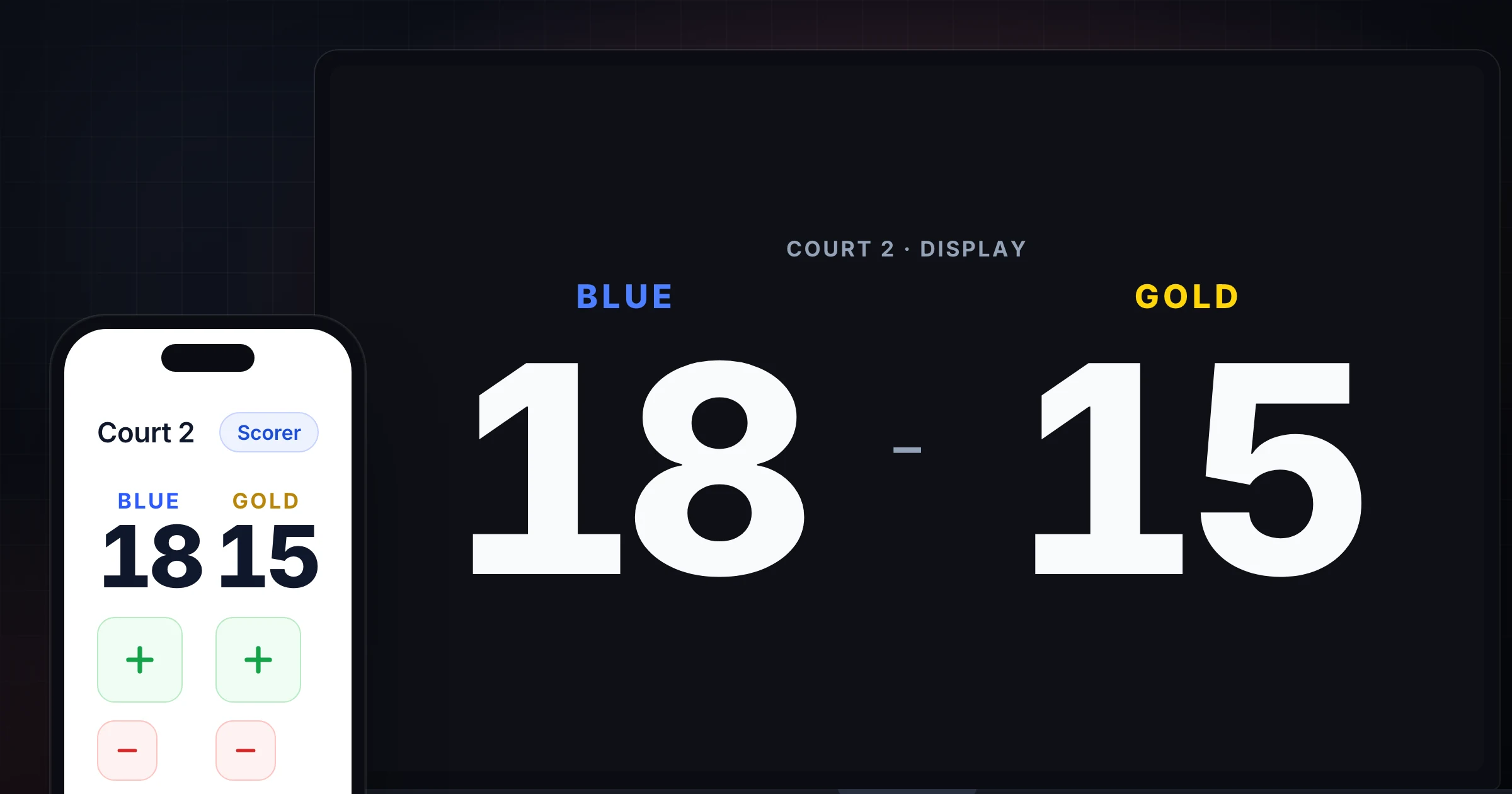
Keeping score on a phone and laptop at the same time is useful when one device is better for updates and the other is better for display.
The phone stays with the scorekeeper. The laptop sits on a table, connects to a TV, or faces the players. Everyone sees the score, but the scorekeeper does not have to stand beside the display.
The risk is conflicting control. If both devices can change the score and two people start tapping, the board becomes harder to trust.
Use SnapCount's free online scoreboard when you need a browser scoreboard that works across phones, tablets, laptops, TVs, and projectors. For link-sharing details, read the live scoreboard link guide. For a gym TV at a basketball game or a laptop on the sideline, the basketball scoreboard online and the football scoreboard online keep that split with each sport's scoring rules.
Use one device for control
Start with a simple rule: one device controls the score.
The second device displays the score.
| Device | Recommended job |
|---|---|
| Phone | Scorekeeper control during the game |
| Laptop | Public display, table display, TV, or projector source |
| Tablet | Either control or display, depending on placement |
| TV or projector | Display only |
This split keeps the workflow clean. The person with the phone can stand near the official, coach, teacher, host, or court. The laptop can stay positioned where everyone else can see it.
If you prefer the laptop as the control device, that is fine. The important point is ownership, not device type.
Set up the phone and laptop before play
Use this setup:
- Open the scoreboard on the control device.
- Name the teams or sides.
- Share the live scoreboard link to the laptop.
- Put the laptop in display position.
- Add a test point from the control device.
- Confirm the laptop updates.
- Adjust laptop brightness, zoom, and screen timeout.
- Reset the test score after the display is verified.
If the laptop is connected to a TV or projector, test that connection too. A scoreboard that works on the laptop but is unreadable on the display still creates confusion.
For a classroom, put the laptop in presenter mode or fullscreen if that makes the score easier to read. For a gym or event room, increase browser zoom until the numbers are readable from the farthest normal viewing spot.
Decide who owns corrections
Corrections are where multi-device scoring can get messy.
Use one correction owner. Usually that is the scorekeeper on the control device.
| Situation | Better process |
|---|---|
| Wrong team got a point | Scorekeeper fixes it once and announces the correction |
| Display looks stale | Refresh or reconnect the display device, do not re-enter points |
| Someone missed a point | Official or host tells the scorekeeper; scorekeeper updates |
| Scorekeeper changes | Pause for a handoff before the new person takes control |
Do not fix a stale laptop by adding points from the laptop. First check whether the laptop is connected to the right live board. If the control device shows the right score and the display does not, the display is the problem.
Keep the public display simple
The laptop's job is readability.
Before the game starts, check:
- Team names are short enough to fit.
- Scores are readable from the expected distance.
- Browser zoom is not too small.
- The display will not sleep.
- Notifications will not cover the score.
- Power is connected for longer games.
- The laptop is not blocking players, officials, or spectators.
For casual games, the laptop can sit on a table near midcourt. For classrooms, it can connect to the projector. For watch parties or trivia nights, it can connect to the TV.
If spectators are also following on their phones, send a viewer link and make it clear that the scorekeeper is the only person updating the score.
Use handoffs instead of shared tapping
Sometimes the scorekeeper needs to leave, play, teach, or switch roles.
Make the handoff explicit:
Current score: Blue 18, Gold 15
Control device: Maya's phone
Display device: laptop on the table
Next scorekeeper: Jordan
Final score recorder: Riley
Then move control. If the new scorekeeper uses a different phone, make sure it shows the current score before play resumes.
The handoff should happen during a pause, not while the game is moving. A 20-second pause is better than a disputed score later.
Record the final score before reset
A phone-plus-laptop setup is still a live display unless you save the final result somewhere.
Before resetting:
- Confirm the game is finished.
- Announce the final score from the control device.
- Record it in the bracket, class sheet, notes, or event recap.
- Check that the laptop display matches the final score.
- Reset or create a new scoreboard for the next game.
For tournaments, label each scoreboard with the court or match number. The phone may be controlling one game while the laptop displays another if tabs are not labeled clearly.
When two active devices are useful
There are cases where two devices may need active access, but they still need rules.
| Use case | Rule |
|---|---|
| Tournament desk and court volunteer | One person updates; the other only corrects after verbal confirmation |
| Teacher and assistant | Teacher controls score; assistant takes over only during a handoff |
| Coach and manager | Manager keeps official scoring; coach views or requests changes |
| Watch party host and co-host | One active scorekeeper per round |
The tool can support multiple devices. The workflow should still have one score owner at a time.
Frequently asked questions
Can I keep score on my phone and show it on a laptop?
Yes. Use the phone as the control device and open the live scoreboard link on the laptop as the display.
Test one score change before the game starts so you know the laptop is showing the same board.
Should both the phone and laptop update the score?
Usually no. One device should control score changes and the other should display the live board.
This prevents duplicate points, double corrections, and accidental resets.
What if the laptop display stops updating?
Check the connection, refresh the display, and confirm it is using the right live link.
Do not add points from the laptop just to make it match. Fix the display issue first.
Can I connect the laptop scoreboard to a TV?
Yes. Open the scoreboard on the laptop, then connect, mirror, or cast the laptop to the TV or projector.
Increase zoom and disable screen timeout so the score stays readable.
Topics: keep score on phone and laptop, online scoreboard, score keeper online, live scoreboard
About SnapCount Team
The SnapCount Team builds and tests shared counting workflows for events, inventory, attendance, and field work. We review these articles when product workflows change and link to the tools we use to validate them.
Contact SnapCount support